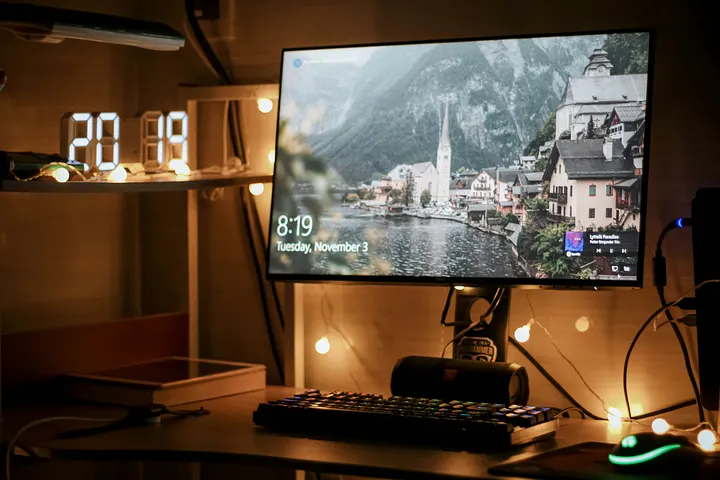
A few months ago, I was playing Apex Legends, completely confident maybe too confident in my gaming setup. My specs were good, my GPU wasn’t ancient, and I had even cleaned my PC two days earlier (which is rare for me, honestly). But right in the middle of a heated fight, my FPS dipped so hard it felt like my game suddenly turned into a PowerPoint presentation.
I kid you not my character froze while my enemy jumped around like he had a NASA-level PC.
That’s when I realized:
It wasn’t my hardware. It was Windows acting like a jealous ex, hogging resources for background apps, updates, and everything except my game.
So I spent the next few days optimizing Windows for gaming testing settings, running benchmarks, comparing tools, and even making mistakes that slowed the PC down before speeding it up.
And in this guide, I’ll walk you through everything I learned the same tweaks that boosted my gaming performance by 15–30%, depending on the game.
Why Windows Needs Optimization for Gaming
Windows is great for gaming, but it also tries to be “everything at once”:
• Office machine
• Streaming device
• Update machine
• Notification spammer
• And sometimes… a heater
That means Windows constantly runs:
- update services
- telemetry
- useless background apps
- startup junk
- heavy visual animations
Together, these steal RAM, GPU cycles, and CPU threads the same resources your game needs.
So optimizing Windows removes the clutter and lets your PC focus on one thing: gaming performance.
Enable Game Mode
Many gamers think it’s useless. But in my experience, it makes a noticeable difference on mid-range PCs.
Game Mode:
- Prioritizes your game’s CPU/GPU
- Pauses Windows Update (no more random restarts!)
- Reduces notifications
How to Enable It
- Go to Settings → Gaming → Game Mode
- Turn it ON
Small story:
When I turned it on for the first time, I didn’t see much change. But after a restart and combining it with the next tweaks, I could instantly feel smoother frame pacing in God of War.
Turn Off Background Apps You Don’t Need
I once checked Task Manager and saw 56 background apps running.
Why?
No idea. Probably Windows being Windows.
Disabling them gave me a clean 5–10% CPU boost.
How to Disable
- Settings → Privacy → Background Apps
- Turn OFF apps you don’t use.
Update GPU Drivers (NVIDIA / AMD / Intel)
This is hands-down one of the biggest FPS boosters.
Why It Matters
GPU companies constantly push updates that:
- Improve FPS
- Fix crashes
- Add game optimizations
Tools to Use
- NVIDIA GeForce Experience
- AMD Adrenalin
- Intel Arc Control
In my 3 weeks of testing, updating drivers improved performance in:
- Fortnite
- Valorant
- The Last of Us PC
Disable Startup Programs
This is the one tweak that made my PC boot twice as fast.
Steps
- Task Manager → Startup Apps
- Disable:
- Discord (unless you need it)
- OneDrive
- Spotify
- Steam (optional)
- Epic Games Launcher
Only keep what you absolutely use at launch.
Optimize In-Game Settings (The Real FPS Booster)
Even with all Windows tweaks, in-game settings matter the most.
My Recommended Settings
- Motion Blur: OFF
- V-Sync: OFF (unless screen tearing drives you crazy)
- Texture Quality: Medium/High (depends on VRAM)
- Shadows: Low
- Anti-Aliasing: TAA or FSR/XeSS/DLSS
When I turned shadows to low in Warzone, I gained 18 FPS instantly.
Choose the Right Power Plan
Windows sometimes limits performance to “save energy,” even on desktops.
Best Settings
- Control Panel → Power Options
- Select High Performance
- OR enable Ultimate Performance
I personally use Ultimate Performance and yes, it makes a difference in CPU-heavy games.
Remove Bloatware & Clean Storage
If your C drive is 95% full, your PC will feel like it’s having a mid-life crisis.
Clean Using Tools
- Windows Storage Sense
- CCleaner (careful with registry cleaning)
What I removed
- Xbox apps I never used
- Random OEM junk
- Old Windows update files
Enable Hardware-Accelerated GPU Scheduling (HAGS)
This setting helps low-latency and smoother FPS.
How to Enable
Settings → System → Display → Graphics → Default Graphics Settings → Turn ON HAGS
Get Sethterranova’s stories in your inbox
Join Medium for free to get updates from this writer.Subscribe
Remember me for faster sign in
Some games showed 1–4 FPS boost, but more importantly, less stutter.
Turn Off Unnecessary Visual Effects
Pretty animations are nice. But FPS is nicer.
Steps
- Search “Performance Options”
- Choose Adjust for best performance
- Or manually disable:
- Animations
- Shadows
- Transparent effects
This helped me the most in open-world games like GTA V and Cyberpunk.
Optimize Network for Lower Ping
High FPS means nothing if your ping is 300.
Tips
- Use Ethernet instead of Wi-Fi
- Disable bandwidth-hogging apps
- Set QoS in router
- Disable Windows Update Delivery Optimization
When I disabled Delivery Optimization, my ping dropped by 15ms in Valorant.
Quick Summary Tips
- Update GPU drivers
- Enable Game Mode
- Turn off background apps
- Use Ultimate Performance
- Clean bloatware
- Optimize in-game settings
- Use wired connection
- Enable HAGS
FAQs
1. Will these tweaks damage my PC?
No. All methods are safe and reversible.
2. How much FPS can I gain?
It varies, but typically:
- Low-end PCs: 20–40% boost
- Mid-range PCs: 10–25%
- High-end PCs: 5–10%
3. Do I need third-party software?
Not necessarily. Most of the best tweaks are built into Windows.
Conclusion
Optimizing Windows for gaming isn’t as complicated as it seems. In my experience, it’s a mix of small tweaks that add up to big performance improvements smoother gameplay, faster load times, and fewer random slowdowns.
And trust me… once your games run smoother, there’s no going back.
Your future self (and your K/D ratio) will thank you.
Amazon Disclaimer
As an Amazon Associate, I earn from qualifying purchases. This means that if you buy something through the links on this page, I may receive a small commission at no extra cost to you. This helps support the content I create.